Your photos marked up, your plans measured.
Draw dimensions, arrows and text on the sheet's photos to show where each opening is and what it needs. On a PDF plan, set the scale and measure lengths, areas and counts, then send the value to the right cell of the sheet.
No credit card. Cancel anytime.
Markup and measurements: a photo marked up, a plan measured, the value sent to the sheet
On the photo, not next to it
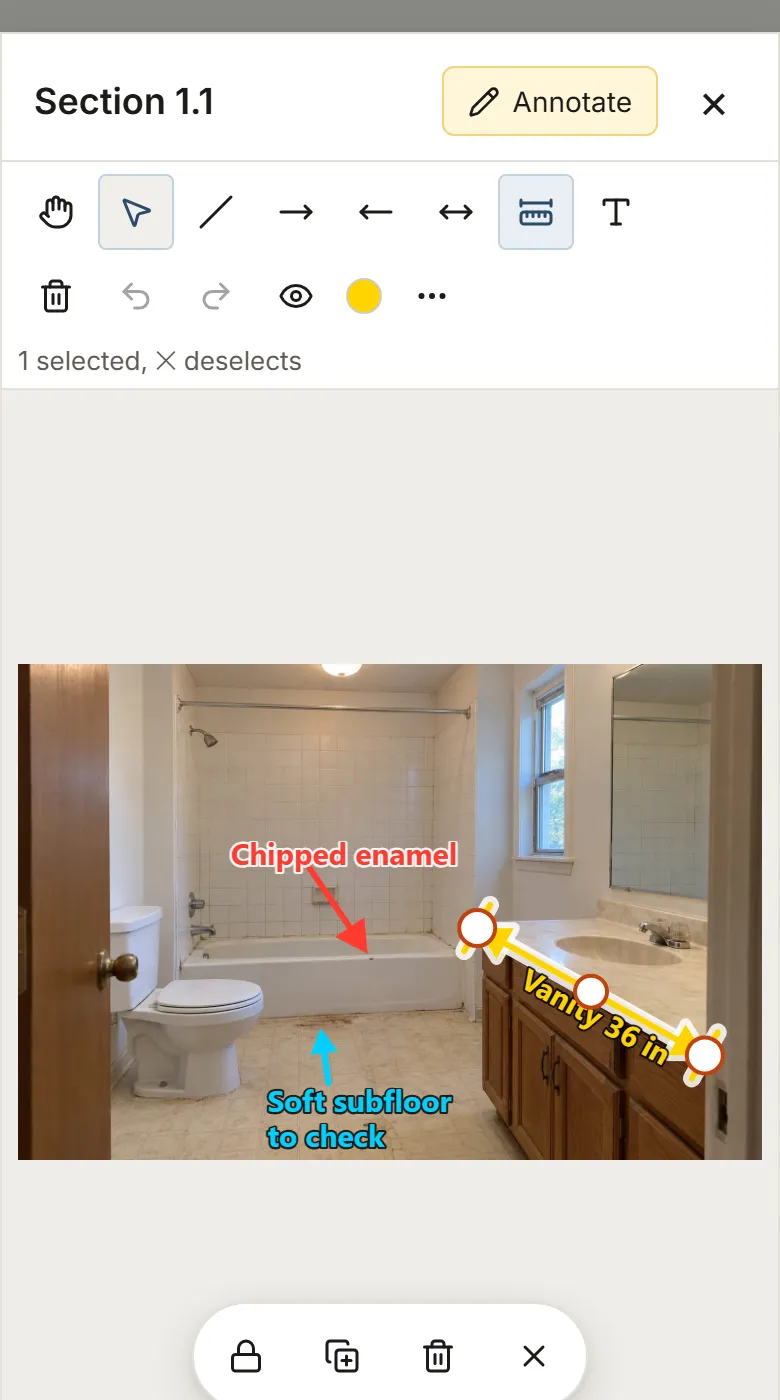
Open a photo of a section and tap "Annotate". Draw a line, an arrow (forward, backward or both ways) or a dimension, with two points or a drag, with a preview that follows the pointer. Write text on one or several lines, turn it or align it with a dimension.
The original photo is never changed: the markup sits on top, and "Hide" clears it while you look at the photo alone.
- Five colors, any color code and your last six colors
- Four line widths, solid, dashed or dotted
- A light or dark outline that follows the text color, readable on a sky as on a lawn
- Up to 1,000 marks per photo or page
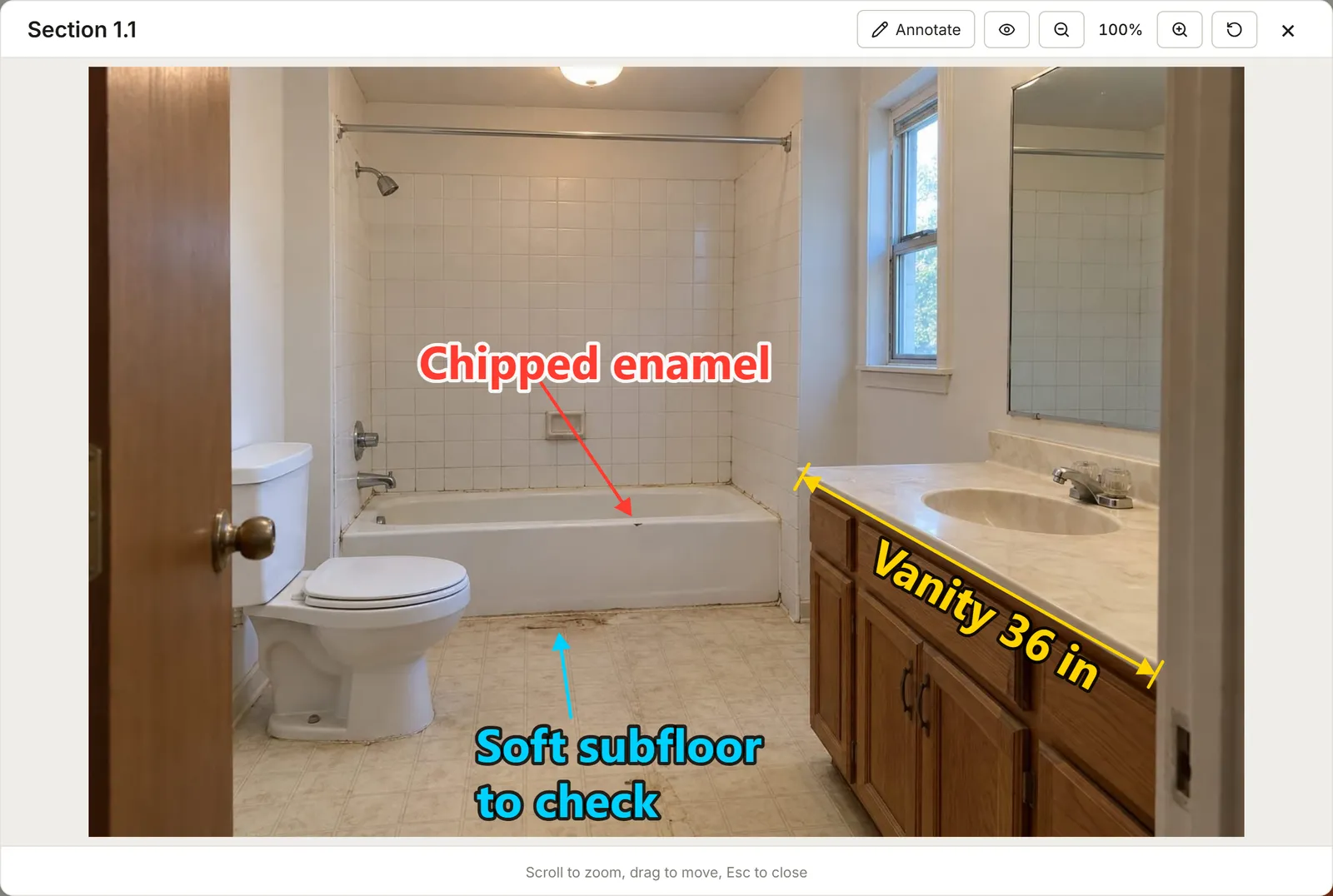
Precise, with a finger or a mouse
Select a mark to move it, stretch it by its ends or turn it; change the color, width or size of the whole selection at once. While you drag an end, a loupe magnifies the exact spot; with a mouse, Ctrl slows the pointer and Shift keeps the line straight.
Undo and Redo keep the last 100 steps of each photo or page. Copy, paste and duplicate work too. Everything saves less than a second after your last move, and a missed save is tried again on its own.
Measure on a plan to scale
On a page of a PDF plan, or a scanned plan as an image, set the scale: two clicks on a printed dimension, then its real length, for example 4' 6 1/2", 54 in, 20 ft or 13 m. Pick the longest printed dimension: aiming errors matter less. Each page has its own scale; replacing or clearing it asks first, and replacing it recalculates the page's measurements.
On a computer-drawn PDF, MesuPro reads the scale written on the plan, for example 1/4" = 1'-0", 1" = 20' or 1:50, and offers it in a banner: "Apply" or "Dismiss", it is never applied on its own. If the plan says it is not to scale, MesuPro warns you. A scanned plan or an image has no detection: you set its scale by hand.
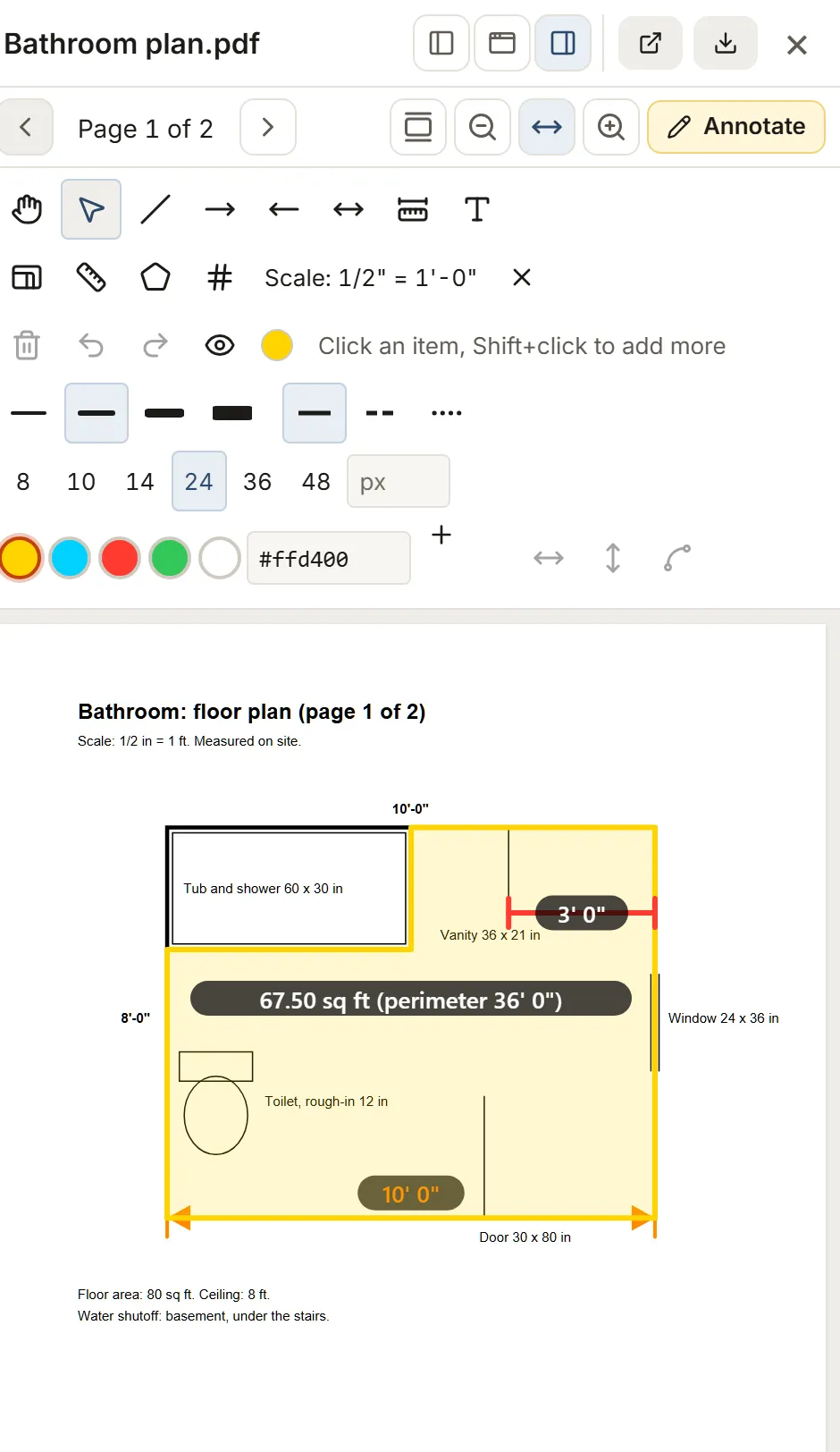
Lengths, areas and counts
"Measure", "Area" and "Count" become available once the page has a scale. A length takes two points or several segments and ends with a double-click or Enter. An area closes on its first point or with Enter and shows its perimeter, for example 30.40 sq ft (perimeter 22' 2 3/4"). To count, one click per item, then Enter. With a finger, "Finish" ends the shape and the ✕ button cancels it.
On a computer-drawn PDF, points snap to the drawing's lines and ends. On a scanned plan, you place the points yourself, and they snap to the ends of the measurements already on the page and of the scale line.
Values follow the sheet's unit system, metric or imperial, or else the organization's, with inch fractions down to 1/16.
From the measurement to the sheet, no retyping
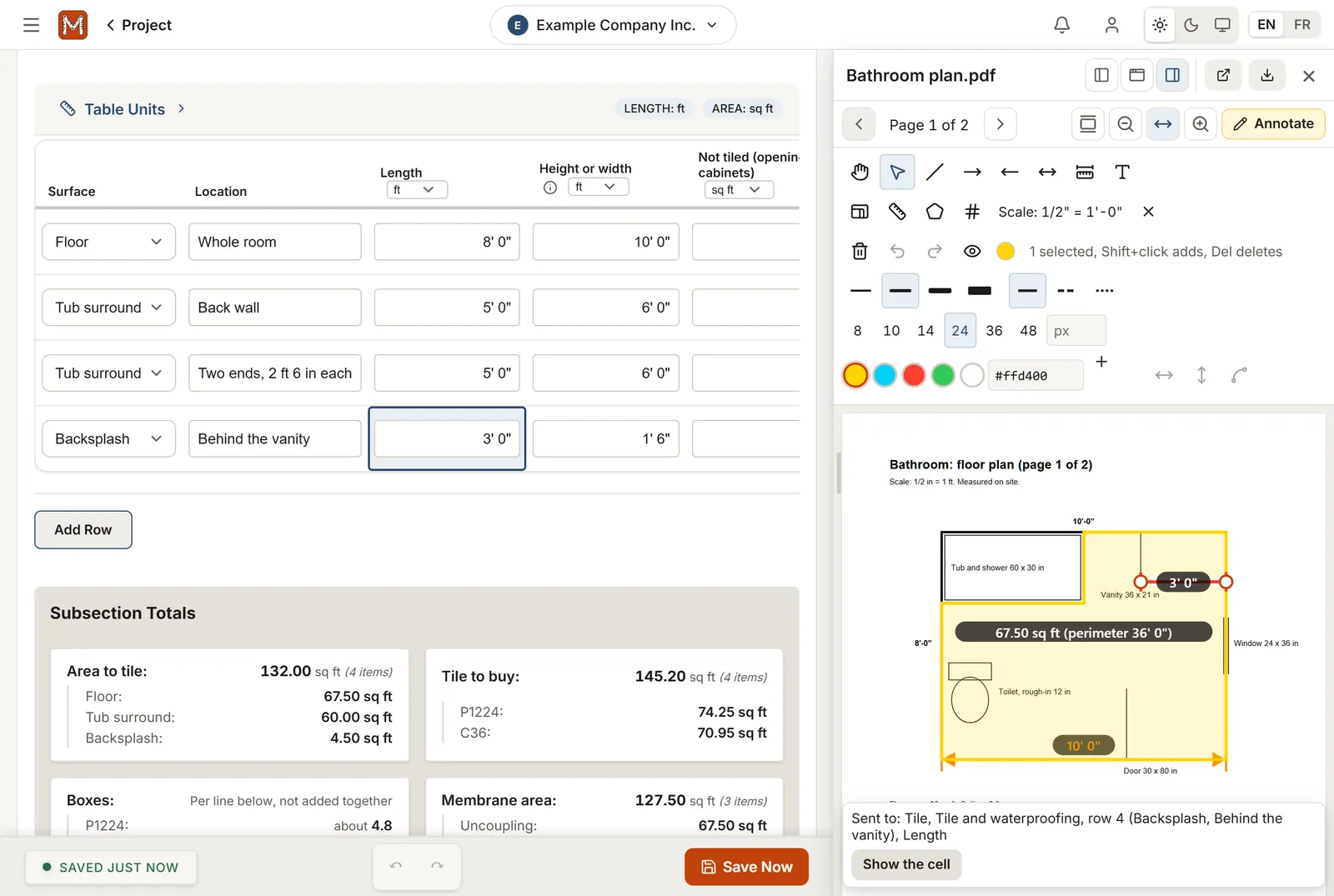
With the plan open next to the sheet, select a measurement and tap "Send to the sheet": MesuPro offers the cells that fit, a length to a length column, an area to an area column, a count to a quantity column. Only columns you fill in yourself are offered, never a calculated one. The value goes in as if you had typed it, rounded to the column's precision, with the row's defaults and autosave; a single Undo takes it back.
The measurement keeps its link: "Sent to" names the cell and "Show the cell" takes you there. If the measurement changes after it was sent, the plan says so ("Value changed since it was sent") and "Send again" replaces the value once you confirm. If the cell was changed in the sheet, or its row is gone, the plan says that too. MesuPro never rewrites a cell on its own.
In your reports
The PDF report shows the photos with their markup, as on screen. A plan attached as an appendix keeps its markup and measurements on its pages, at its own size, even a rotated page. A page or area attached to the photos with "Attach an area" keeps the markup it showed. On PDF plan pages, measurement values print at 8.5 pt, the text size used on plans. The Excel file shows the same pictures on its Photos sheet.
- "Include the markup" in the export window, on by default
- Unchecked: the photos and plans go out as they are
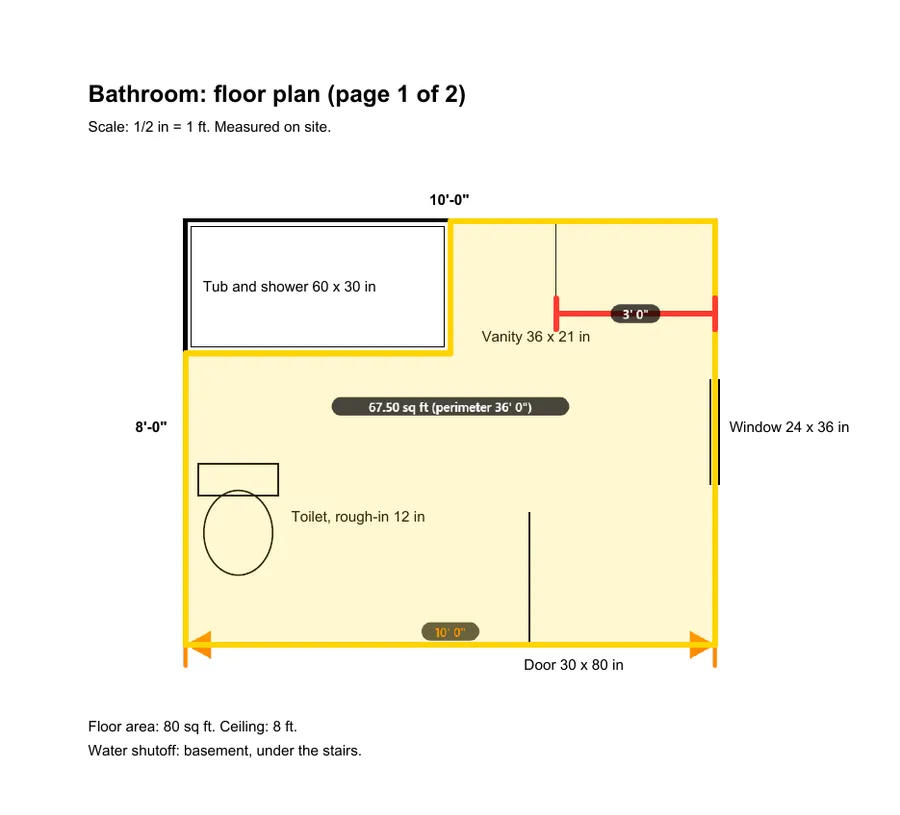
On a phone
One finger draws, two fingers move and zoom and never place a point. Handles are bigger, the loupe follows your finger, and a floating bar stands in for the keyboard: keep the line straight, duplicate, delete, cancel or deselect. The toolbar wraps onto two rows.
Who can mark up
People who can edit the project mark up and measure. Viewers see the markup and the measurements but cannot change them. If two people change the same page at the same time, the second one sees the latest version and is told so. A duplicated sheet keeps its photos' markup.
FAQ
Can I measure on a photo?
No: a photo has perspective, so it has no scale. On a photo, a dimension is a drawn reference; write the value as text next to it. To measure, use a plan.
What about a scanned plan?
Set the scale by hand on a printed dimension, then measure: everything works except scale detection. Points cannot snap to the lines of a picture, but they snap to the ends of your measurements and of the scale line; zoom in and use the loupe.
Is the photo or the plan changed?
No. The markup is saved separately and laid on top. The original file stays as it is.
Do my clients see the markup?
In the PDF report and the Excel file, yes, unless you uncheck "Include the markup". In the app, the project's viewers see it but cannot change it.